
 Curtain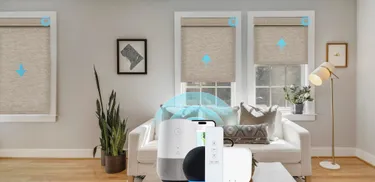
Eve Matter Blinds Setup: What to Check Before You Connect
If you're wondering how to connect Eve Matter blinds, the process is much easier when you prepare everything before pairing. Checking the motor power, Matter setup code, Thread Border Router, and travel limits first can prevent most setup problems. Completing these steps first can help you avoid most connection issues and create a more reliable smart home experience.
Matter enables compatible smart home devices to work across ecosystems such as Apple Home, Google Home, Amazon Alexa, and Samsung SmartThings. However, Eve Matter blinds use Thread, so pairing requires more than Matter compatibility alone. Before setup, make sure your smart home system supports Thread and includes a compatible Thread Border Router.
This guide walks through the complete Eve motorized blinds setup process, explains why Thread matters, and highlights the most common reasons a device may fail to connect. Whether you're installing your first smart shade or replacing an existing window covering, following these Eve blinds connection instructions can make setup much smoother.
Quick Setup Checklist
Before starting your Matter motorized blinds setup, take a few minutes to confirm the following items. Completing these checks before pairing can help prevent the most common connection issues.
Power the Motor and Install the Blind
Make sure the motor is fully charged or connected to a stable power source before pairing. If the blind has not yet been installed, mount it securely first so the motor can complete its calibration without obstruction.
Locate the Matter Setup Code
Find the Matter QR code or numeric setup code before you begin. It is usually printed on the motor label, product packaging, or in the user manual. You'll need this code during the how to connect Eve blinds process.
Prepare Your Smart Home System
Install and update a Matter-compatible app, such as Apple Home, Google Home, Amazon Alexa, or Samsung SmartThings. Also confirm that your smart home includes a compatible Thread Border Router, since Eve Matter blinds communicate through Thread rather than WiFi.
Set the Top and Bottom Limits
Before pairing, configure the fully open and fully closed positions of the blind. Proper travel limits help ensure accurate positioning and smoother automation after setup.
Keep Your Phone Nearby
During the pairing process, keep your smartphone close to the motor to improve communication and reduce the chance of connection failures. For a visual walkthrough of the setup process, this video may also be helpful:
https://www.youtube.com/watch?v=ZOr7tQw8P_s
Do Eve Matter Blinds Need WiFi or a Thread Border Router?
One of the most common questions during an Eve smart blinds setup is whether the blinds connect directly to WiFi. In most cases, they do not.
Instead, Eve Matter blinds communicate through Thread, a low-power wireless protocol designed for smart home devices. Because of this, you'll need a compatible Thread Border Router to connect the blinds to your smart home network.
It's also important to remember that Matter support does not always mean Thread support. Before starting your Matter motorized blinds setup, make sure your smart home platform includes a compatible Thread Border Router. Otherwise, the blinds may not appear during pairing even if your app supports Matter.
Set the Top and Bottom Limits First
Before pairing your blinds, set the top and bottom travel limits so the motor knows the fully open and fully closed positions. Most manufacturers recommend completing this step before adding the blind to a Matter ecosystem.
Depending on the motor model, travel limits can be configured using the motor button, a remote control, the manufacturer's app, or the programming instructions in the user manual. Once the limits are set correctly, the blind can respond accurately to commands such as fully open, fully closed, or a specific position like 50%.
Skipping this step may lead to incorrect positioning or incomplete movement after pairing, so always follow the setup instructions for your specific motor.
How to Add Eve Matter Blinds to Your Smart Home App
Once installation and calibration are complete, you're ready to begin the Eve smart blinds setup. While the interface varies slightly between smart home platforms, the overall pairing process is very similar. Following the steps below will help you connect your blinds quickly and ensure all smart control features work as expected.
Step 1: Prepare Your Smart Home App
Open a Matter-compatible smart home platform such as Apple Home, Google Home, Amazon Alexa, or Samsung SmartThings. Before adding the blinds, make sure the app has been updated to the latest version and that Bluetooth is enabled on your smartphone if required by your platform.
It's also a good idea to confirm that your Thread Border Router is online and connected to the same smart home ecosystem you plan to use. Preparing your app and network in advance can reduce connection errors during the Eve motorized blinds setup process.
Step 2: Add the Blind Using the Matter Setup Code
In your smart home app, tap Add Device or Add Accessory to begin pairing. Although different platforms may use slightly different names, the overall process is nearly identical across supported Matter ecosystems.
When prompted, scan the Matter QR code included with your blinds using your phone's camera. If the QR code cannot be scanned, manually enter the numeric Matter setup code provided with the product. This code securely authenticates the device and is an essential part of how to connect Eve blinds successfully.
Keep your smartphone close to the motor throughout the pairing process. Once the app detects the blind, simply follow the on-screen instructions to complete device authentication and join the Thread network.
Step 3: Assign the Blind and Test the Controls
After the blind has been added successfully, assign it to the appropriate room, such as the living room, bedroom, or office. Organizing devices by room makes voice commands and smart home automations easier to manage later.
Finally, test all basic functions to confirm the setup was completed correctly. Check that the blind responds to Open, Close, Stop, and percentage position commands such as 50% open. If every command works as expected, your Matter motorized blinds setup is complete, and the blind is ready to be included in schedules, scenes, and other smart home automations.
What to Do If Eve Matter Blinds Won't Connect
The table below summarizes the most common connection issues. If the problem isn't immediately obvious, work through the troubleshooting steps below one by one. Starting with the power supply and network configuration often resolves the issue without requiring a factory reset.
| Problem | Possible Cause | Solution |
|---|---|---|
| QR code not found | Missing setup code | Use numeric code |
| Device not detected | No Thread Border Router | Check Thread router |
| Blind won't move | Battery low | Recharge motor |
| Stops halfway | Limits not set | Reset limits |
Even after careful preparation, pairing may occasionally fail.
Fortunately, most issues can be resolved with a few simple checks.
Check the Motor, Power Supply, and Matter Setup Code
- Check Motor Power
- Confirm Matter Setup Code
- Stay Close to the Motor
A successful pairing starts with the basics. Before assuming there is a software issue, verify that the motor has enough power and that you're using the correct Matter setup code.
If the motor runs on a rechargeable battery, charge it fully before attempting another setup. For hardwired models, confirm that the power supply is stable and that the motor responds normally to manual controls.
Next, check that you're scanning the correct Matter QR code or entering the correct numeric setup code. Using the wrong code or a damaged label will prevent secure pairing.
Finally, keep your smartphone close to the motor during commissioning. Bluetooth is commonly used during the initial setup process, and reducing the distance between the phone and the device can improve pairing reliability.
Verify Your Thread Network
- Thread Border Router
- Thread Network
Many connection problems are actually caused by network configuration rather than the blinds themselves.
Make sure your Thread Border Router is powered on, updated to the latest firmware, and connected to the same smart home ecosystem you're using for setup. Without an active Thread Border Router, Eve Matter blinds cannot join the Thread network even if your smart home app supports Matter.
If you recently replaced your smart home hub or router, restarting your Thread Border Router before pairing again may also help refresh the network.
Check Motor Calibration and Travel Limits
- Set limits
- Stops halfway
- Calibration
If the blind appears in the app but doesn't move correctly, the problem may be related to motor calibration rather than connectivity.
Verify that both the top and bottom travel limits have been configured correctly. These limits tell the motor where the fully open and fully closed positions are located.
If the limits haven't been stored, the blind may stop halfway, reverse unexpectedly, or report inaccurate position percentages inside your smart home app. Recalibrating the motor according to the manufacturer's instructions often resolves these issues.
Restart and Pair Again
- Restart App
- Pair Again
- Contact Support
If all hardware and network settings appear correct, restarting the pairing process is often the fastest solution.
Close the smart home app completely before reopening it. If the blinds were partially paired during a previous attempt, perform a factory reset on the motor according to the manufacturer's instructions and start the pairing process again.
If the problem persists after multiple attempts, contact the manufacturer's technical support team. Providing details such as the motor model, firmware version, smart home platform, and the troubleshooting steps you've already completed will help support staff identify the issue more quickly.
Best Practices for Long-Term Performance
Once your Eve smart blinds setup is complete, a few maintenance habits can help ensure reliable operation over time.
- Keep your smart home app updated.
- Install firmware updates when available.
- Maintain a stable Thread Border Router connection.
- Avoid completely draining rechargeable batteries.
- Check mounting hardware periodically to ensure smooth operation.
- Test automations after major smart home updates.
Following these recommendations helps maintain accurate positioning and consistent response times while reducing the likelihood of future connection issues.
Final Thoughts
A successful how to connect Eve blinds experience begins long before you scan the Matter QR code. Verifying motor power, locating the setup code, confirming a compatible Thread Border Router, installing the blind correctly, and setting the travel limits first will eliminate many of the problems users encounter during installation. By following these Eve blinds connection instructions, most homeowners can complete their Matter motorized blinds setup quickly and enjoy reliable smart control across supported ecosystems.
If you're planning to upgrade your home with Matter-compatible window treatments, it's also worth choosing products that combine reliable smart control with custom sizing and quality materials. Persilux offers a range of motorized shades designed for modern smart homes, making it a practical option for homeowners who want seamless automation without sacrificing style.